IE عند تصفح بنك مصر باستخدام Microsoft Edge أحدث تقنيات الواجهة الأمامية لذلك سيحصل المستخدمون على إخلاء مسؤوليه للتبديل الى Internet Explorer لا يدعم

BM Pay

BM Pay mobile payment service for Android users
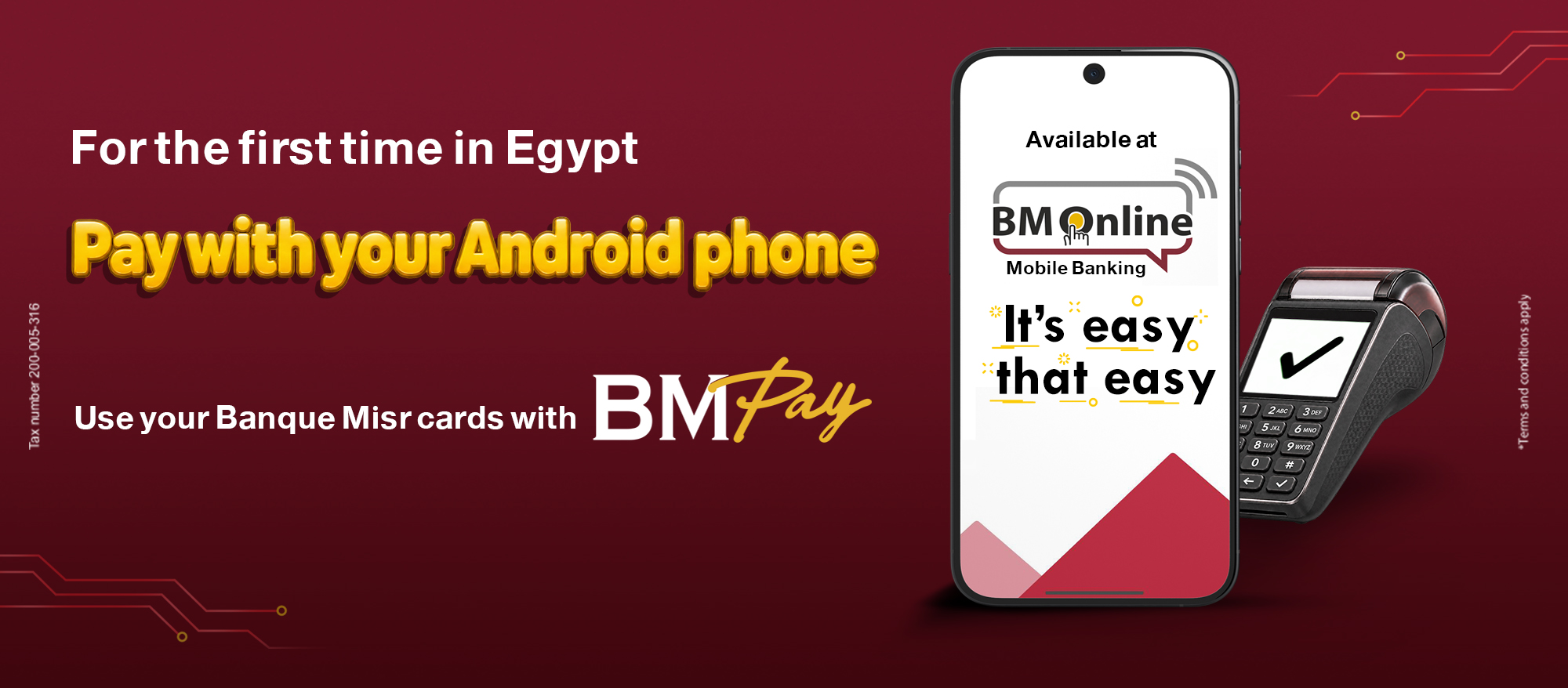

Tap and pay with Banque Misr BM-Pay.


Enjoy seamless contactless payments with Banque Misr cards on your Android phone. With BM-Pay, you can make secure, hassle-free payments at any POS terminal that accepts contactless payments, adding ease and peace of mind to every purchase.

Benefits

Top-Notch Security

Experience peace of mind with biometric authentication for secure transactions.

Wide Acceptance

Use BM-Pay at contactless POS terminals wherever contactless payments are accepted

Convenience at Your Fingertip

Enjoy the speed and security of paying with your phone by adding your Banque Misr card to BM-Pay

How to Add Your Card Through BM-Online


Follow the below steps 

Step 1: Download and open the latest version of BM-Online.


Step 2: Log in using your username and password or biometric.


Step 3: Tap BM-Pay on the home screen (dashboard).


Step 4: Scroll up/down to choose the card you want to add to BM-Pay, then tap Add the card.


Step 5: Enter the authentication code (OTP) sent by SMS.


Step 6: Accept the Terms and Conditions.


Step 7: You are now ready to use BM-Pay.


How to pay using Apple Pay in stores

Paying in Store: Automatic Mode

Paying in Store: Manual Mode

Single Tap


Step 1:
The merchant starts the transaction on the POS.

Step 2: Unlock your phone with your biometric, then tap it on the POS.

Step 3: A confirmation screen appears on your phone showing your card and the amount. Confirm the final transaction status from the POS and from the notifications.


Step 1: Log in to BM-Online and go to BM-Pay.

Step 2: Choose the card you want from your linked cards list.

Step 3: Tap Pay with card.

Step 4: Authenticate with the biometric set on your phone.

Step 5: Tap the phone on the point of sale (POS).

Step 6: A confirmation screen appears on your phone showing your card and the amount. Confirm the final transaction status from the POS and from the notifications.


Double Tap

Use it if your phone has been unlocked for more than 60 seconds, or for a second transaction after the unlock.

Step 1: The merchant starts the transaction on the POS.

Step 2: Tap the phone on the POS.

Step 3: Your phone asks you to authenticate

Step 4: Tap the phone on the POS again.

Step 5: A confirmation screen appears on your phone showing your card and the amount. Confirm the final transaction status from the POS and from the notifications.


Tips: Tap the upper-back of your phone on the POS contactless area and hold it for 1–2 seconds. Make sure NFC is enabled before making the transaction. If the POS is not responding, log in to BM-Online and open BM-Pay to restart the Automatic Payment service, or pay manually through the app.


Manage Your Cards

Change the default card: Open BM-Online › BM-Pay › Linked cards › select the card you want › tap Make as default card. (To pay with a card other than your default card, pay manually: BM-Online › Linked cards › select the card › Manual Payment › tap the phone on the POS.)

Delete a card: Open BM-Online › BM-Pay › tap your default card › tap Unlink card.

Suspend a card or token: Call us on 19888.

Resume a token: Call us on 19888.


Transaction History

See your latest BM-Pay transactions on your phone:

Step 1: Open BM-Online and go to BM-Pay.

Step 2: Tap your card.

Step 3: Tap View transactions.

You receive a BM-Online notification for every approved or declined transaction.

Secure Your Payments with Confidence

  • Your actual card number is not shared with the merchant. A unique Device Account Number (token) is used instead, and your receipt shows only its last four digits.
  • Every payment is authenticated with the biometric set on your phone.
  • Stay in control of your card with a BM-Online notification and an SMS for every approved or declined transaction.
  • Review your latest BM-Pay transactions anytime inside the app.

Eligibility for subscription

Before You Start, please check below conditions

  • Any Android mobile phone with NFC support.
  • Android 8 or higher.
  • Huawei phones are not supported.
  • The latest version of the BM-Online app.

FAQs

A check mark and the amount appeared on my phone, but the POS declined the transaction.

The check mark only confirms that the request was sent from the phone to the POS. It does not mean the payment was approved. Please try again. No amount has been deducted from your account.

An X appeared on my phone and the POS transaction wasn't completed.

This can happen if the phone is removed from the POS too quickly. Keep it against the terminal for 1–2 seconds until the transaction completes.

Are there limits on BM-Pay transactions?

The monthly and daily purchase limits of your card type apply to BM-Pay transactions, exactly as for every card product, since BM-Pay transactions are processed on your card itself.

Can I change my default card?

Yes. Open BM-Online › BM-Pay › Linked cards › select the card you want › tap Make as default card.

Can I continue using my physical card if I remove it from BM-Pay?

Yes. Your physical card will continue operating normally and you can add it to BM-Pay again anytime.

Can items purchased with BM-Pay be returned?

Yes. Please contact the merchant directly for the refund. To start a refund, hold your phone near the payment reader. The receipt shows the last four digits of the Device Account Number, not the full card number. Once verified, the refund is processed through BM-Pay.

How can I remove a card from BM-Pay?

Open BM-Online › BM-Pay › tap your default card › tap Unlink card.

I don't want Automatic Payment enabled. I only want to pay manually.

Disable it from BM-Online › Linked cards › default card › Remove as default.

To pay: BM-Pay › select the card › Manual Payment › tap the phone on the POS.

I don't want my phone ready for contactless payments whenever it's unlocked.

Turn off NFC on your phone when you're not planning to pay, and turn it on again before tapping the phone on the POS. Alternatively, you can remove your default card and pay manually only: BM-Online › Linked cards › default card › Remove as default, then pay through BM-Pay › select the card › Manual Payment › tap the phone on the POS.

I held my phone against the POS for a long time, but the POS keeps saying “processing”

Make sure NFC is enabled on your phone, and check that your card was added and set as default.

On some phones, after the phone is restarted or turned off, you may need to restart the Automatic Payment service: just log in to BM-Online and open BM-Pay, and you will receive a notification that the service is up. Then try paying again.

I tapped my phone, but nothing happened on the POS terminal.

Place the upper-back of your phone on the POS contactless area and hold it there for 1–2 seconds until the transaction is processed. A thick phone case can block the NFC signal, so try without it.

Is BM-Pay a safe payment option?

Using your Banque Misr cards with BM-Pay offers robust security features. Here's why it's safer than traditional plastic card transactions:

Enhanced Security: Every BM-Pay payment is authenticated with the biometric set on your phone, adding an extra layer of protection.

Privacy Protection: Your card number is not shared with merchants. A unique Device Account Number (token) is used instead, and your receipt shows only its last four digits.

Fraud Monitoring: Transactions are continuously monitored by Banque Misr's advanced risk and fraud detection systems to safeguard your account.

Instant Alerts: You receive a BM-Online notification and an SMS for every accepted or declined transaction.

What are the common reasons for difficulties in making a BM-Pay payment?

  • The merchant does not accept contactless payments.
  • NFC is turned off on your phone.
  • The phone was moved away from the POS too quickly. Hold it for 1–2 seconds.
  • A thick phone case is blocking the NFC signal. Try without it.

What should I do if my payment card is lost?

Call us right away on 19888 and your card will be suspended. After we block your card, you will not be able to use it with BM-Pay. A replacement will be sent upon your request.

What should I do if my phone is lost or stolen?

Call us right away on 19888 and your card or token will be suspended.

Where can I get support?

Call us on 19888.

Who can use BM-Pay?

All Banque Misr cardholders with an Android phone that supports NFC and runs Android 8 or higher. Huawei phones are not supported.

Link has been copied